
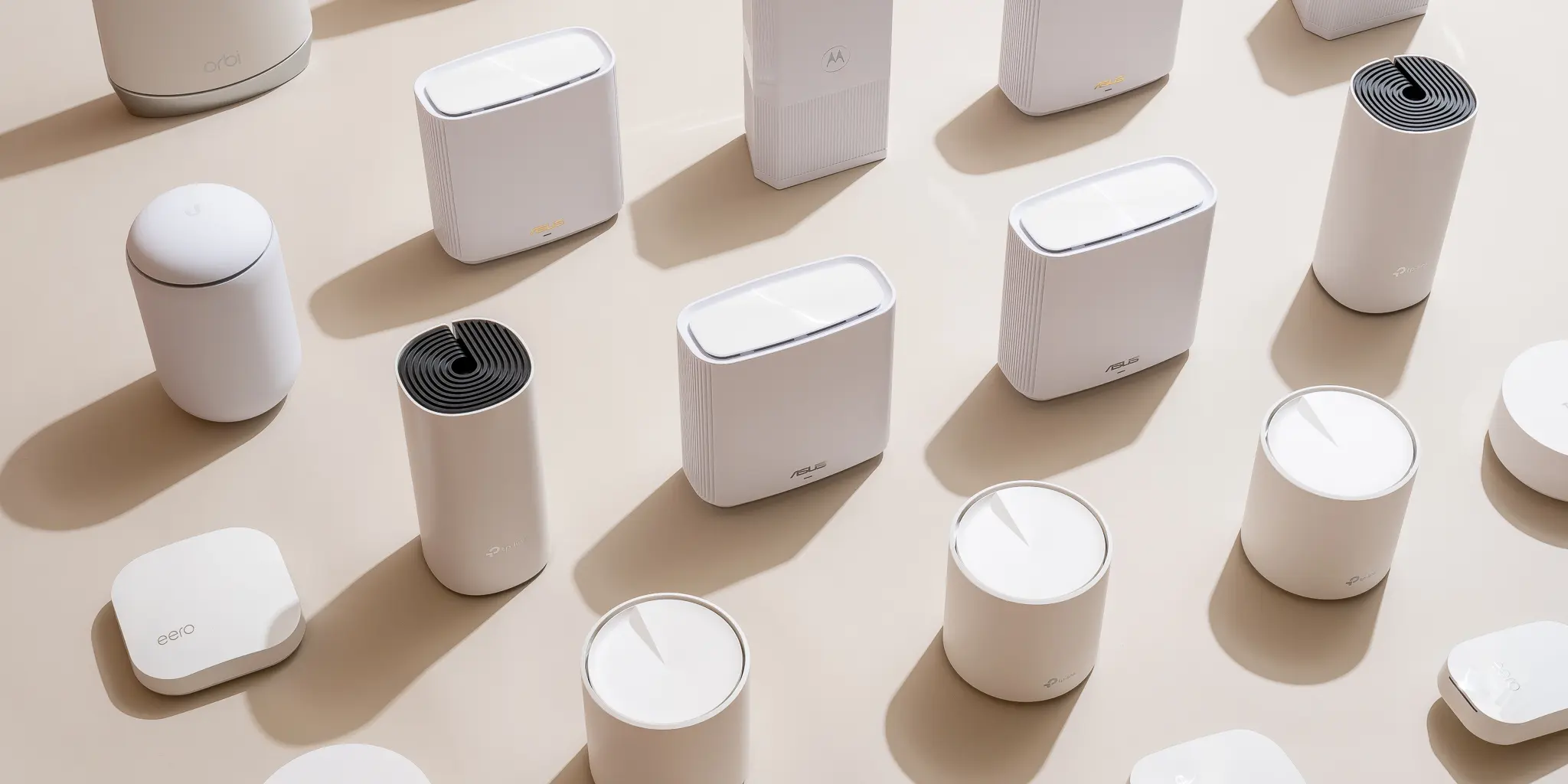
What Is a Mesh WiFi Network?
Before diving into installation, it helps to understand what a mesh WiFi system actually does. Unlike traditional routers that rely on a single device to broadcast your signal, a mesh network uses multiple connection points, or “nodes”, that communicate with each other.
Each node extends your coverage, creating a unified network with one WiFi name and password. This means:
- No more switching networks as you move around your home.
- Fewer dead zones, even in large spaces.
- Better performance for smart devices and streaming.
When properly set up, Google’s mesh system automatically routes your connection through the strongest signal available, giving you uninterrupted internet anywhere in your home or small office.
Step 1: What You’ll Need Before Starting
Before you start your Google WiFi mesh installation, make sure you have:
- A Google WiFi or Nest WiFi device (router and points).
- The Google Home app on your smartphone or tablet.
- A modem connected to your internet service provider.
- An Ethernet cable (included with your Google WiFi).
- A stable internet connection for setup.
It’s best to unbox all your devices before starting, ensuring everything is within reach and ready for connection.
Step 2: Setting Up Your Primary Google WiFi Device
Your primary router, or main point, acts as the hub for your mesh network.
Here’s how to install mesh WiFi for your primary device:
- Connect your Google WiFi router to your modem using the provided Ethernet cable.
- Plug in the power adapter and wait until the light pulses white, this means it’s ready for setup.
- Open the Google Home app on your phone.
- Tap “+” → “Set up device” → “New device.”
- Follow the prompts to find your WiFi device and connect it.
- Choose your home or office location and assign a name (e.g., “Main Router”).
- Set a secure network name and password.
Once connected, your app will confirm the router’s connection and guide you through basic configuration.
Step 3: Adding Additional Mesh Points
After the main router is online, it’s time to expand your coverage. Google’s mesh points connect wirelessly to your primary device, extending the network into areas with weaker signals.
Follow these steps for installing mesh WiFi points:
- Plug in your secondary device in another room, ideally halfway between the router and an area with poor coverage.
- Wait for the LED to pulse white.
- Open the Google Home app and tap “Add” → “Set up device” → “New device.”
- Select your network and follow the prompts.
- The app will test the connection strength between your main router and the new point.
If the signal is weak, move the device closer to your main router. The app provides guidance on optimal placement to avoid interference from walls, appliances, or metal objects.
Step 4: How to Install Mesh WiFi Extender for Broader Coverage
If you’re expanding to a larger home, basement, or office space, learning how to install a mesh WiFi extender can make a big difference.
The process is similar to adding additional points, but placement is key.
- Position the extender halfway between a strong signal area and the weak zone.
- Avoid stacking or hiding it behind furniture, it needs open space to broadcast effectively.
- Always keep the extender within the same network name and password for seamless transitions between points.
The great thing about Google’s system is its automatic optimization. Once your extender is active, it dynamically adjusts traffic so every device connects to the best available node.
Step 5: Setting Up Google Nest WiFi Mesh
Google’s Nest WiFi takes the mesh concept one step further with integrated smart features, including built-in Google Assistant speakers in some models.
Here’s how to install Google Nest WiFi mesh:
- Download or update the Google Home app.
- Plug in your Nest WiFi router and connect it to your modem.
- Follow the on-screen setup instructions in the app.
- Add Nest WiFi points the same way you would add mesh nodes.
- Assign names to each point (e.g., “Living Room,” “Bedroom,” “Office”).
Each Nest point also doubles as a smart speaker, so you can control WiFi settings or smart devices with simple voice commands like, “Hey Google, pause WiFi for the kids.”
Step 6: Testing and Optimizing Your Mesh Network
Once everything is connected, it’s time to test your coverage.
Use the Google Home app to:
- Check connection strength for each point.
- Run a speed test to verify internet performance.
- Move nodes if the app detects a weak link.
For best results:
- Keep points at least one room apart for wide coverage.
- Avoid placing them on the floor or near thick concrete walls.
- Ensure each node is within range of another to maintain consistent communication.
By following these placement tips, you’ll ensure full signal coverage throughout your home or small business.
Step 7: Troubleshooting Common Issues
Even with Google’s user-friendly setup, you might encounter minor hiccups. Here’s how to resolve common problems during Google WiFi mesh installation:
- Can’t connect to WiFi?
- Restart both your modem and router.
- Ensure your phone’s Bluetooth is enabled for device detection.
- Weak connection between points?
- Move secondary nodes closer to the main router.
- Keep devices away from large metal appliances.
- Internet drops randomly?
- Check for firmware updates in the Google Home app.
- Reset your network by unplugging all devices for 60 seconds and reconnecting.
- Can’t find the new point in the app?
- Factory reset the mesh point by holding the reset button for 10 seconds.
Google’s app makes troubleshooting simple, offering built-in diagnostics and step-by-step recommendations.
Professional Tips for a Reliable Mesh Setup
To make your mesh system perform even better, try these expert tips:
- Label your points clearly in the app to easily identify them.
- Enable WPA3 encryption for stronger security.
- Schedule network pauses for smart bandwidth management.
- Set up guest WiFi to keep your main network private.
- Reboot your system monthly to clear cache and maintain speed.
These small adjustments can significantly improve your network’s stability and performance.
How Mesh WiFi Improves Life at Home and Work
A properly configured Google mesh network does more than deliver fast internet, it enhances your lifestyle.
- Remote workers enjoy smoother video conferencing.
- Gamers experience lag-free online sessions.
- Smart home devices connect more reliably.
- Small businesses can set up conference rooms or co-working spaces without costly rewiring.
For families or startups in San Francisco’s dense neighborhoods, a mesh system ensures uninterrupted connectivity for every device.
Conclusion: Streamlined Connectivity Made Simple
Setting up Google WiFi mesh installation doesn’t have to be complicated. By following these steps, you can create a strong, seamless network that eliminates dead zones and enhances your online experience. Whether you’re learning how to install mesh WiFi, expanding your system with extenders, or configuring Google Nest WiFi mesh, a little preparation goes a long way in building a fast, secure, and dependable network.
How Solution Oriented Services of San Francisco, LLC Can Help
At Solution Oriented Services of San Francisco, LLC, we help individuals and small businesses stay connected with reliable technology solutions that make life easier. With over 15 years of experience in IT, WiFi, and smart home configuration, we focus on service, not sales.
Our goal is to help you understand your tech and get the most out of it, whether it’s optimizing a WiFi setup or troubleshooting device connections. As a proud, locally owned business serving the San Francisco community, we bring personal attention, professionalism, and care to every service.
Call (415) 650-4767 to schedule your IT support today and experience seamless connectivity done right!